How to Generate README Preview Images for Your GitHub Projects
Export a readable README image from Markdown, with a working example and practical checks for code, images and social previews.
On this page
A README image lets you show a project summary in a slide, chat message or social post. Copy the relevant Markdown into the README to Image tool, check the rendered headings and code, then export a PNG. Start with a short section so the text stays readable at the final display size.
Try a complete README example
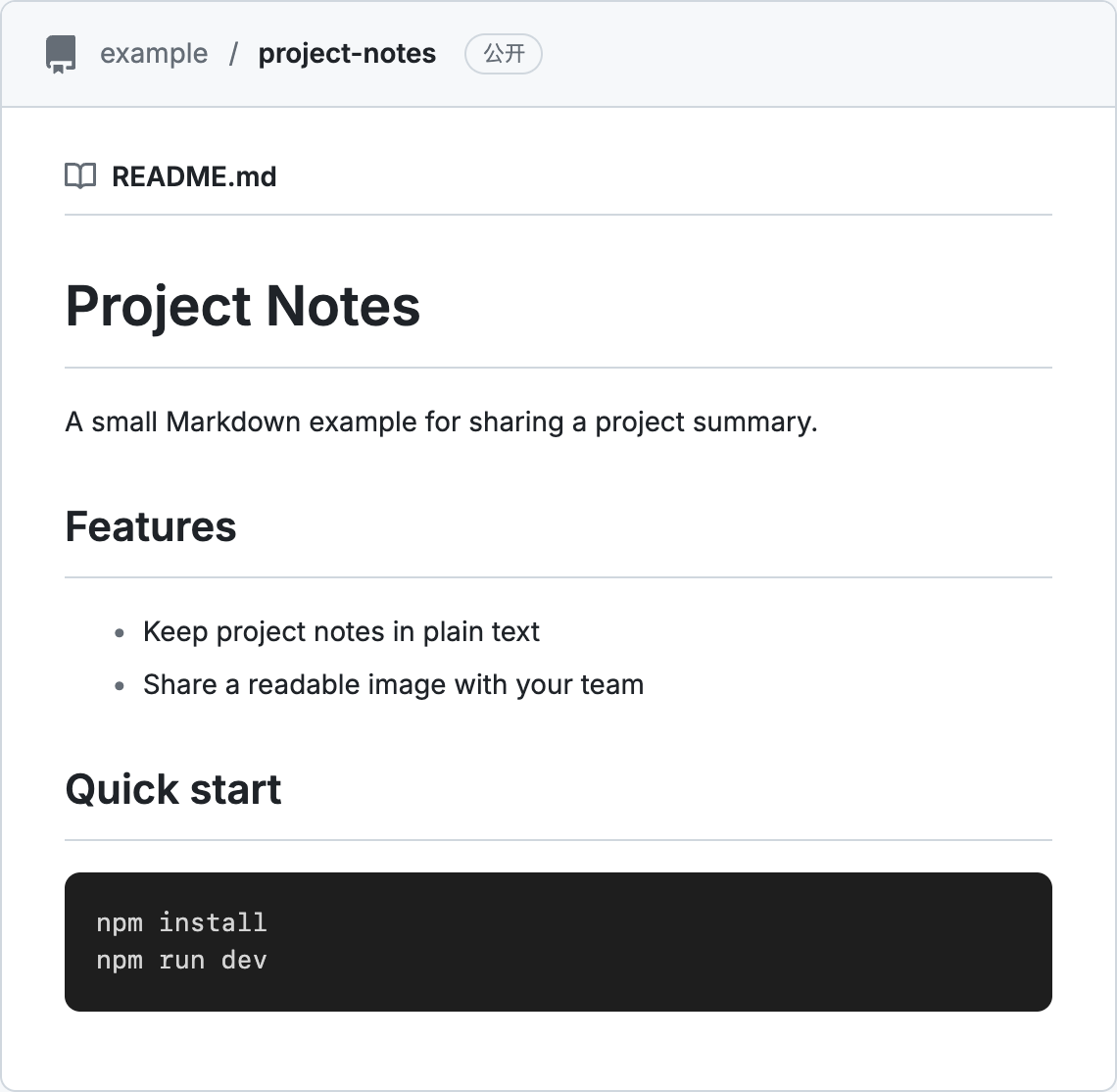
The image above was exported from the tool using the GitHub Light theme. Project Notes and example/project-notes are fictional sample content. Choose Load this README to open exactly the same source:
# Project Notes

A small Markdown example for sharing a project summary.

## Features
- Keep project notes in plain text
- Share a readable image with your team

## Quick start
```sh
npm install
npm run dev
```
This sample contains a heading, a short description, a list and a shell code block. Copy the complete example, including the three-backtick shell fence, to keep the quick-start commands in their own code block.
Export your own README as a PNG
- Copy the Markdown source from your README file. For a long README, select the introduction and the few sections you want to share.
- Open README to Image and replace the sample in README Editor. The tool accepts pasted Markdown; entering a repository name does not fetch its README.
- Edit the repository label above the editor, or use a label that clearly identifies your example.
- Choose GitHub Light, GitHub Dark or another available theme. Check the preview for missing images, long lines and unexpected formatting.
- Open Export and choose PNG. After a successful export, a download link remains available. Open the file and check its text before posting it.
The repository label is a presentation header. It does not verify a repository or synchronize information with GitHub. The tool’s decorative repository counters are not measurements of your project.
Make the image readable
Use one clear project heading, a sentence explaining what the project does, and a few useful details. A quick-start command often communicates more than a long feature list. Keep any text you expect people to read large enough for the destination.
The example uses only text so its output does not depend on external image servers. Your README may include badges or screenshots hosted elsewhere. Those resources must load successfully and allow the browser to include them in an export; if they fail, remove them or share a text-only section.
Relative image paths such as ./docs/screenshot.png refer to files in your repository. Pasting Markdown does not bring those files into the tool. Use an accessible absolute image URL and check the exported result, or omit the image.
README images and GitHub social previews
Exporting a README image creates a file you can attach to a post. It does not automatically change the preview of a GitHub link.
To change a repository’s link-preview image, upload a suitable image in the repository settings under Social preview. GitHub recommends a 1280 × 640 pixel image for best display. See GitHub’s social preview instructions for the current requirements.
A full-length README export may be much taller than that shape. Prepare a short, readable composition for the link preview rather than squeezing an entire document into it.
Pick the format for the destination
| Format | Typical use | Limitation |
|---|---|---|
| PNG | Social posts, chat messages and slides | Text and links become pixels |
| SVG | Compatible browsers and design workflows | HTML-based SVG support varies by application |
| A downloadable single-page document | Exported content is an image, not an editable README |
Keep the original Markdown and link to the repository alongside your image. Readers can then copy commands, follow links and find the latest documentation.
If you only need to show data, use the Markdown table guide. For a standalone code snippet, open Code to Image.
Try it with your own content
Open README to Image, edit the example, and check your preview.