How to Convert Markdown Tables to Beautiful Images for Sharing
Convert Markdown tables into clean PNG images for presentations, social media, and documentation. No Excel needed.
On this page
To share a Markdown table in a slide, chat message or document, render the table and export it as a PNG. In MDConvrt, use the Markdown editor when you already have a pipe table, or the table editor when you want to edit individual cells. This guide uses the same small project-status table in both workflows.
Start with a small, readable table
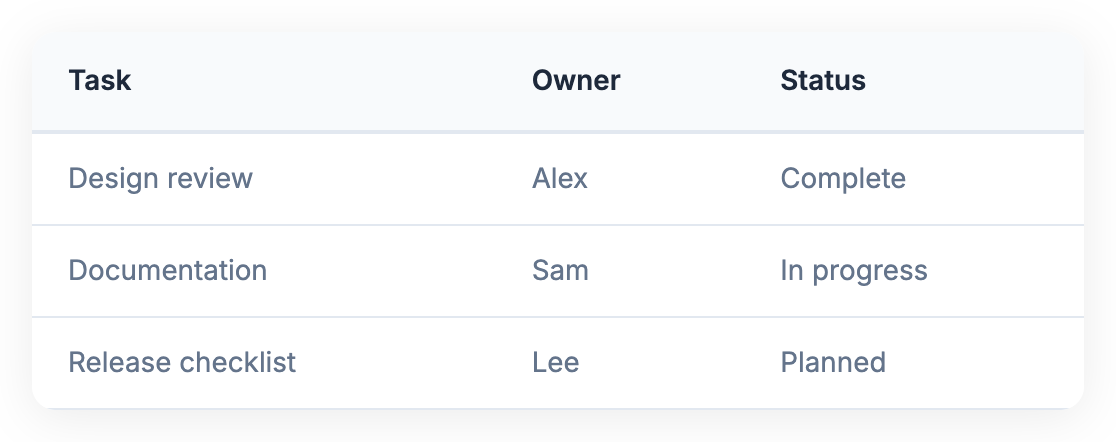
The image above is an actual export using the Minimal table theme. The names and tasks are sample data. Here is the equivalent Markdown:
| Task | Owner | Status |
| --- | --- | --- |
| Design review | Alex | Complete |
| Documentation | Sam | In progress |
| Release checklist | Lee | Planned |
Keep each row focused on one item. Short column labels and consistent units make the final image easier to read, especially in a phone message. If your table has many columns, share a smaller selection rather than shrinking every cell.
Convert an existing Markdown table
- Copy the complete table, including the header separator row containing
---. - Open the Markdown to Image editor and replace its sample content with your table.
- Check the preview. Each row should have the same number of columns; a pipe character inside a value may need escaping.
- Adjust the theme and preview width, then export a PNG. Open the downloaded file to check the smallest text before sharing it.
This route is useful when the table comes from a README, notes or an AI reply. Paste just the table if you do not want the surrounding explanation in the image.
Edit cells in the dedicated table tool
For the example shown above, choose Load this table. The tool opens with the same three columns and three rows, using the Minimal theme.
- Edit the column labels or any cell. The preview updates as you type.
- Use Add Row or Add Column to extend the table.
- Choose a theme with enough contrast for your destination.
- Open Export and select PNG. The tool also leaves a download link after a successful PNG export.
The dedicated tool edits cells; it does not import a pasted Markdown table. Use the main Markdown editor for that workflow. Its Copy action copies a pipe-table representation when you need to return the edited data to a Markdown document.
Choose an export format
| Format | Use it for | Check before sharing |
|---|---|---|
| PNG | Chat messages, slides and ordinary documents | Check text at the size people will actually see |
| SVG | A browser or application that supports HTML-based SVG | This exporter embeds HTML; compatibility varies across image editors |
| A single-page attachment or printable copy | The table is embedded as an image, not editable spreadsheet cells |
PNG is a practical starting point when you cannot test the recipient’s SVG support. Keep the original Markdown or table data separately so you can update it later.
Fix common table problems
Columns do not line up: check the header separator and the number of pipe-delimited values in each row. Markdown spacing is for source readability; the renderer controls cell widths.
The image looks crowded: shorten labels, remove low-priority columns or split a long table into sections. Increasing export resolution alone does not make small text readable in a narrow message.
You need people to sort or calculate: share the source data or a spreadsheet alongside the image. A table image is for viewing, not interactive analysis.
For a document containing more than a table, see README preview images. For diagrams, use the Mermaid guide.
Try it with your own content
Open Table to Image, edit the example, and check your preview.